
How to Use the B+ Dashboard Features
This guide will introduce you to key functions of your B+ dashboard.
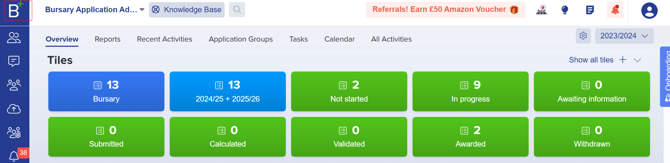
Section titled “This guide will introduce you to key functions of your B+ dashboard.”Your dashboard provides an overview of key data, including received applications, awarded bursaries, and remaining allocations.
Click the B+ button in the upper left corner of the screen.
Customising Your Dashboard
Section titled “Customising Your Dashboard”-
Monitor Application Progress: Use tiles/cards to track students at different bursary stages.
-
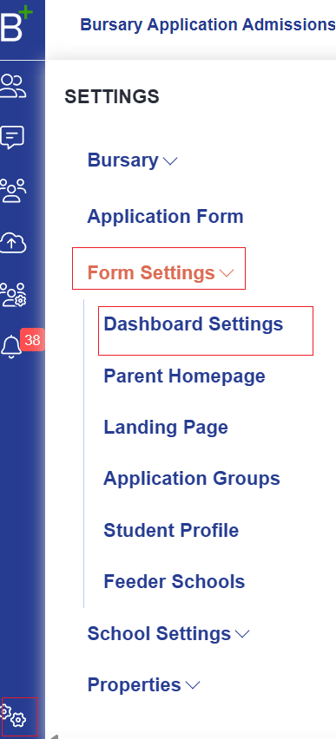
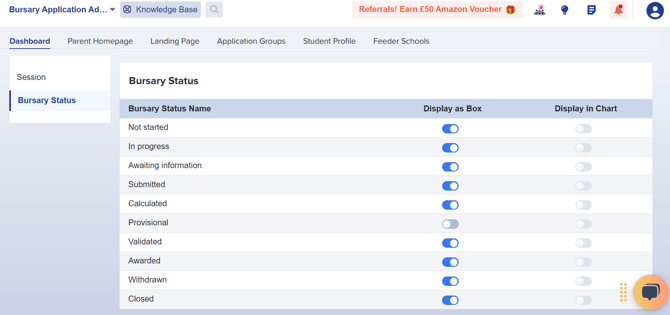
Manage Tiles: Go to Settings > Form Settings > Dashboard Settings to toggle tiles on/off (changes save automatically).
-
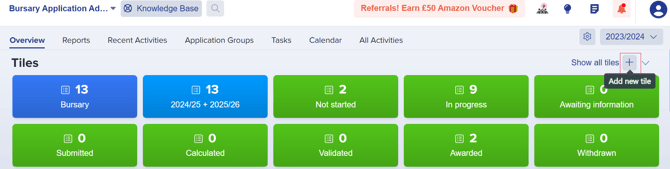
Create Custom Tiles: Use the add new tile icon (+) on your main dashboard.
Managing Dashboard Widgets
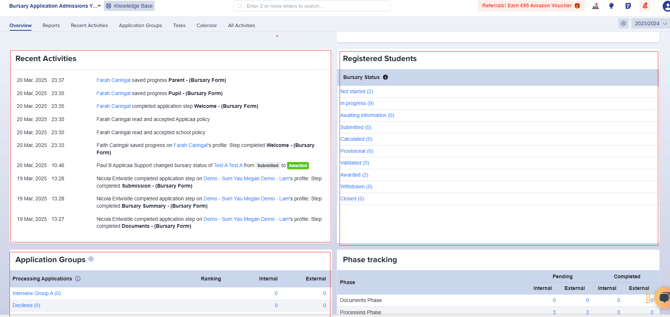
Section titled “Managing Dashboard Widgets”Your dashboard includes default widgets like Registered Students, Recent Activities, and Application Groups, which you will see as you scroll down.
-
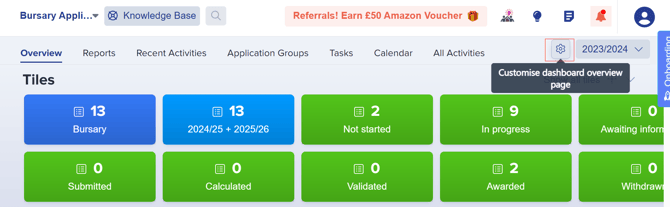
Click the settings cog (top right) to adjust visibility of these widgets.
-
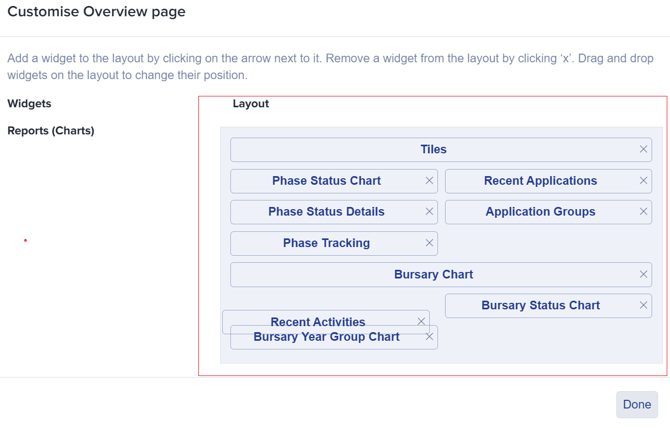
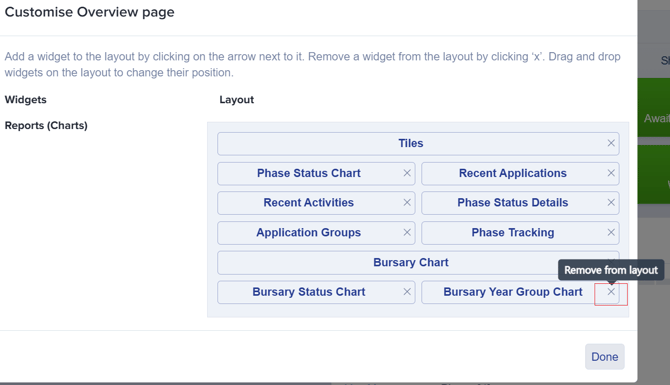
Drag and drop widgets to reorder them or click X to remove them.
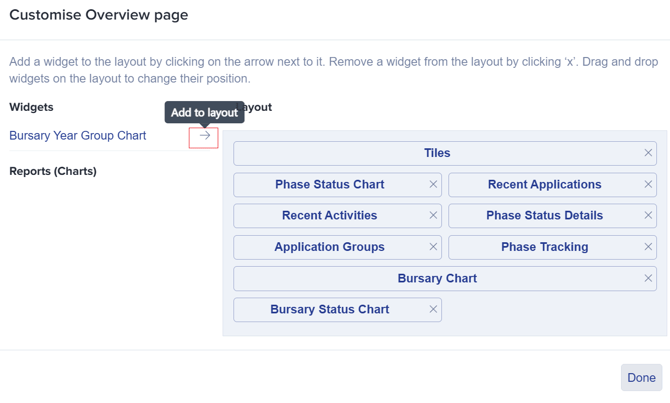
Customise your dashboard to keep the most relevant information at your fingertips!