
Enrolment Day Overview for Staff
This is the key information you need to know in order to enrol students on Enrolment Day.
Super Admin users on your system can add you to the system as a staff member if you do not already have access and will need to be able to log in on results day. Please speak to your system administrator and ask them to create a login for you.
When you log in, you will need to access the Enrolment area of the platform. Students will be logging in, confirming their details and submitting their enrolment forms to you for review.
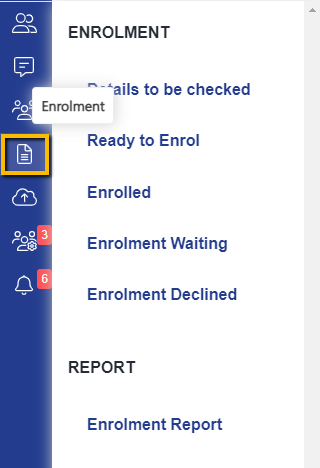
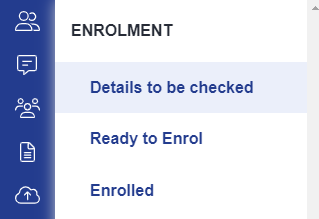
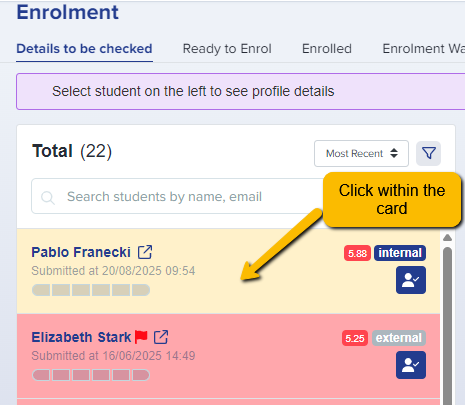
You will need to visit the Details to be Checked area and should click within a student’s name card to load their details.
Depending on your school’s process, they may ask you to check and confirm each section of information provided by the applicant, or they may instruct you to navigate straight to the achieved grades area (Education tab) and check the uploaded file matches the grades the student has entered.
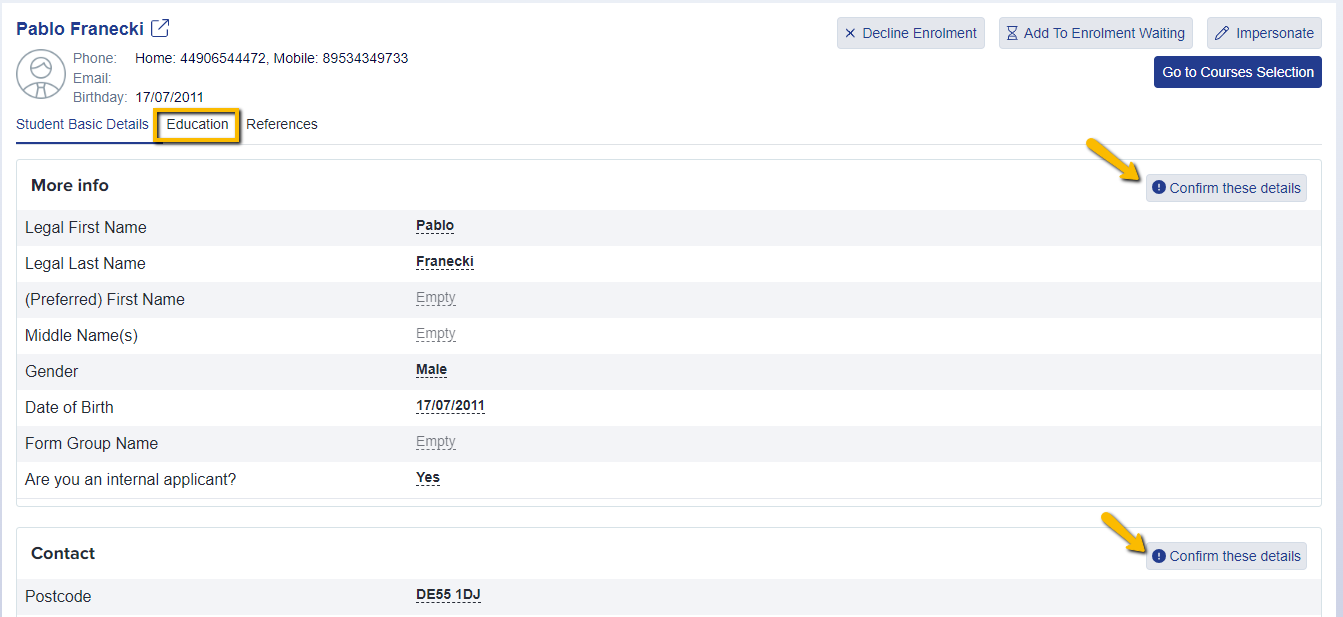
Note: internal applicants’ grades will have been imported by the Super Admin, so it will be most important to check the grades for external applicants.
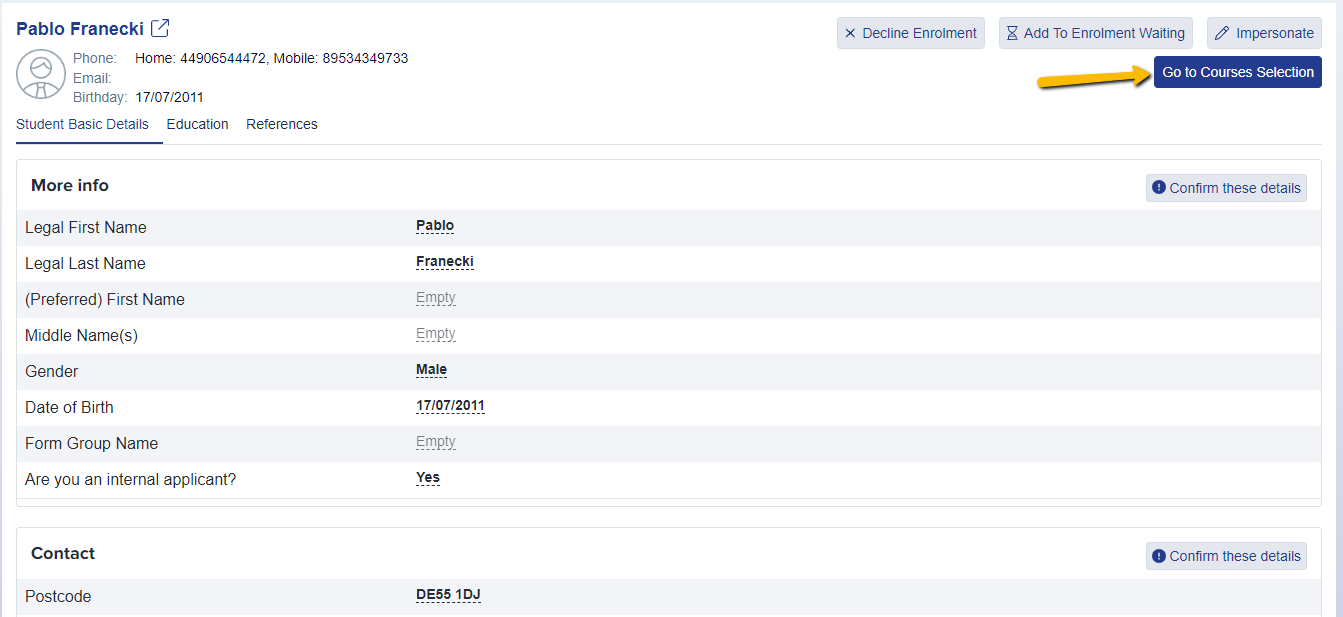
Once you have checked the student’s details and are happy to proceed with their enrolment, click to Go to Courses Selection and this will move the student into Ready to Enrol status.
Depending on your school’s process, you may only be checking details (in which case, repeat the steps above for the next applicant) or you may be completing each student’s enrolment in full - covered below.
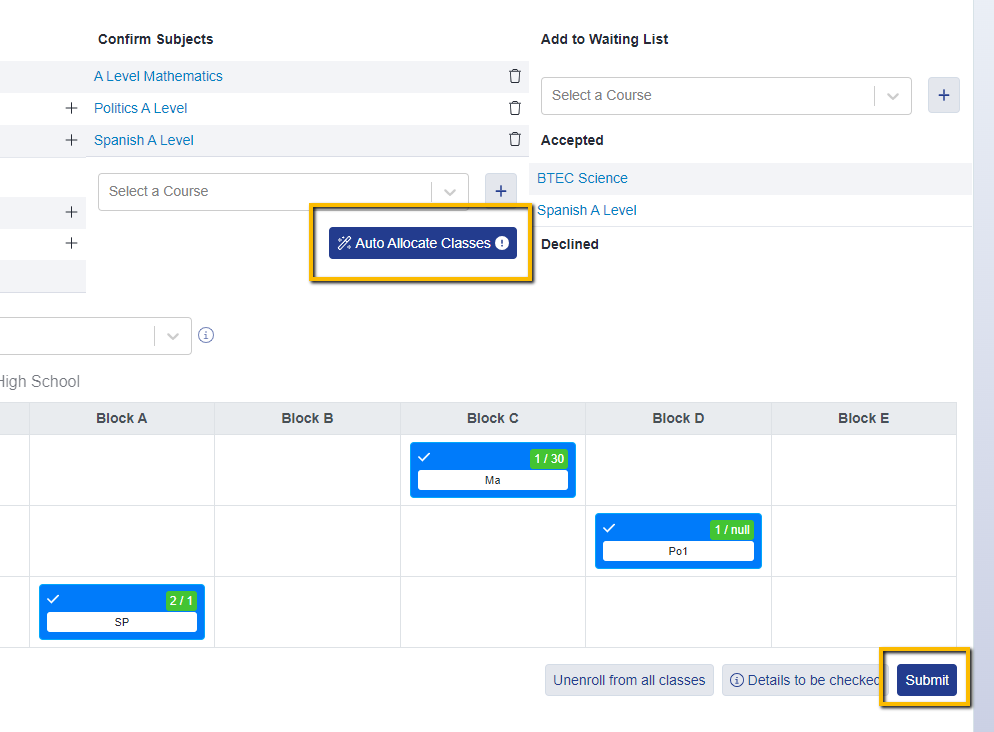
In Ready to Enrol, you can confirm the student onto the courses you are approving for them. Click the + icon next to each course you wish to confirm, or select a course from the dropdown menu in the “confirm subjects” column. Courses you are wanting to enrol them into need to be added to the Confirm Subjects column.
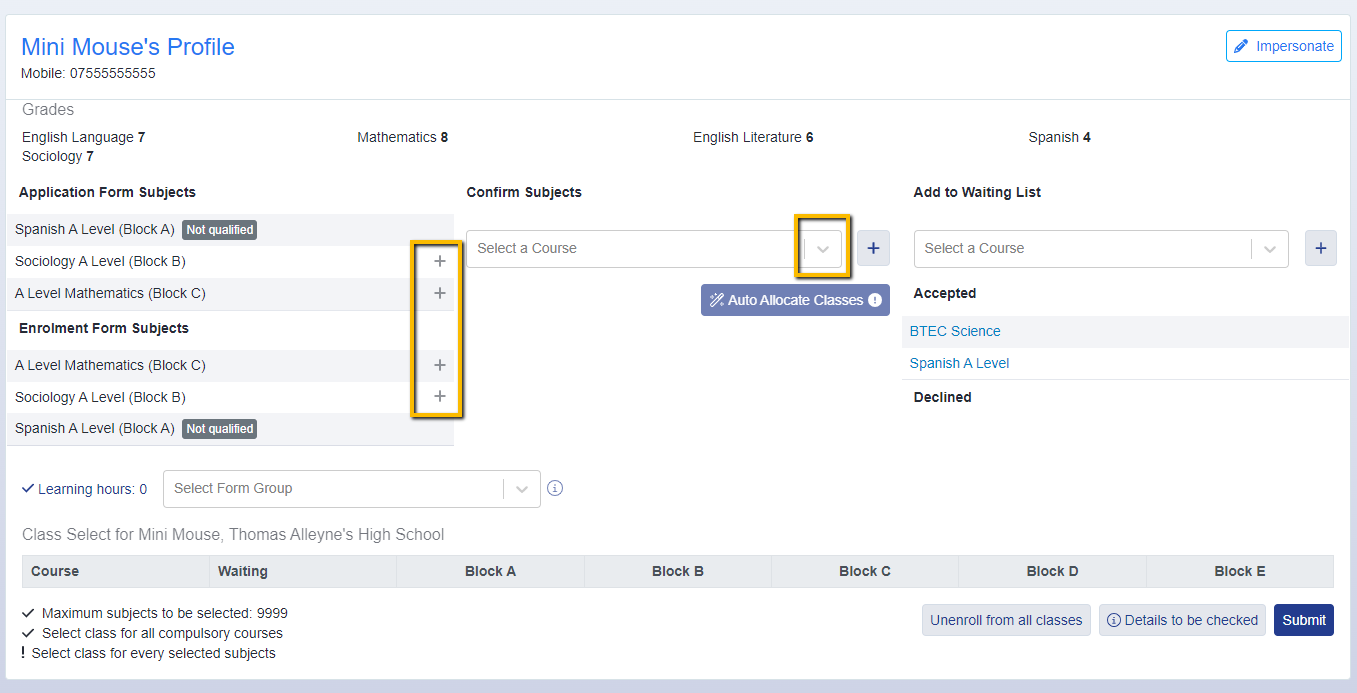
If a subject is not listed for you to select, this will mean the student has not met the entry criteria for the subject and you will need to add them to the waiting list first.
Depending on your permissions, you may or may not be able to approve students onto courses for which they have been added to the waiting list. It may be that another colleague has these permissions and will approve or decline the students.
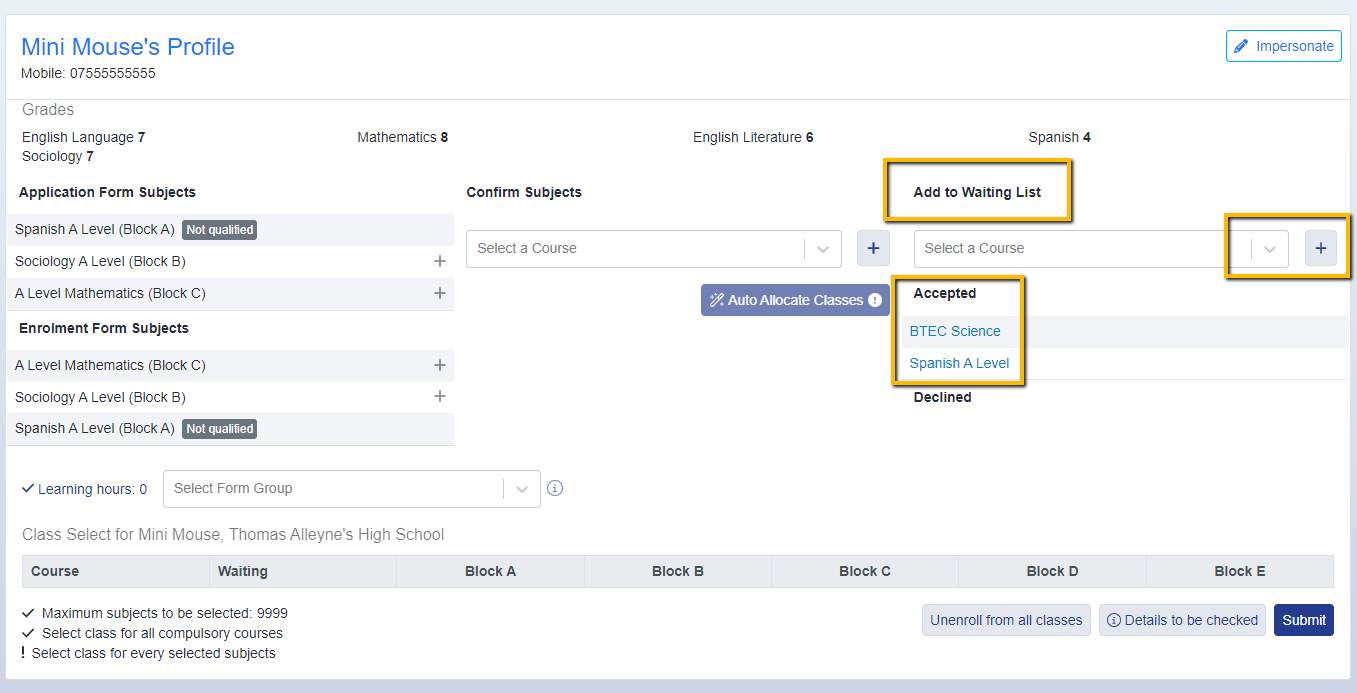
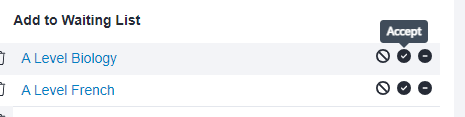
If you are able to approve students, you can do so and the course will then become available to select in the “confirm subjects” area.
Once all subjects are confirmed, you can then click to allocate the student to their classes and submit their enrolment.
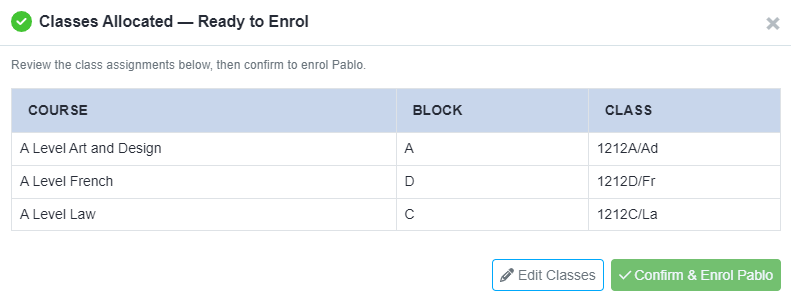
You’ll see confirmation of their classes and blocks and can either Edit Classes, or Confirm & Enrol.
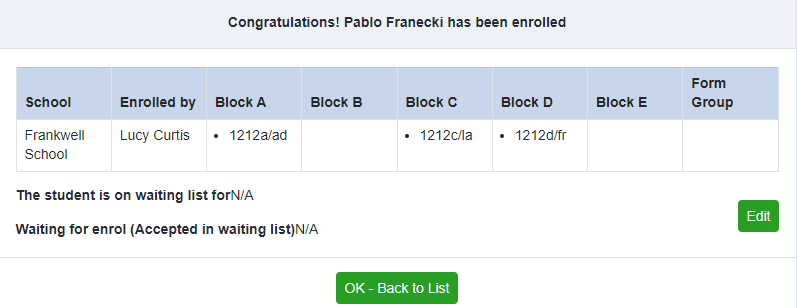
You’ll be shown a summary to confirm the enrolment and will click Ok - Back to List to move onto the next student.
Was this article helpful?
Thanks for your feedback.