
How to use 2FA Authenticator App for logging in
Set up and use an authenticator app to quickly and securely log in instead of email-based two-factor authentication
By default, two-factor authentication (2FA) is completed via email, where you receive a verification code each time you log in. As an alternative, you can use a third-party authenticator app such as Google Authenticator or Microsoft Authenticator for faster and more secure logins.
Benefits of using an Authenticator App
Section titled “Benefits of using an Authenticator App”Using an authenticator app provides several advantages compared to email-based codes:
-
Increased security – Codes refresh every 30 seconds, making them harder to intercept.
-
Faster logins – No need to wait for an email to arrive.
-
Works offline – Codes are generated in the app even without internet or mobile signal.
-
Reduces email dependency – Avoids delays or missed codes due to email filters/spam.
-
Industry standard – Widely used and recommended for secure account access.
Set up 2FA with an Authenticator App
Section titled “Set up 2FA with an Authenticator App”Step 1: Download an Authenticator App
Section titled “Step 1: Download an Authenticator App”Choose and install your preferred authenticator app:
-
Google Authenticator
-
Apple IOS: Google Authenticator for iOS
-
Android: Google Authenticator for Android
-
-
Microsoft Authenticator
-
Apple IOS: Microsoft Authenticator for iOS
-
Android: Microsoft Authenticator for Android
-
Step 2: Go to your profile settings
Section titled “Step 2: Go to your profile settings”-
Log in to your Applicaa account.
-
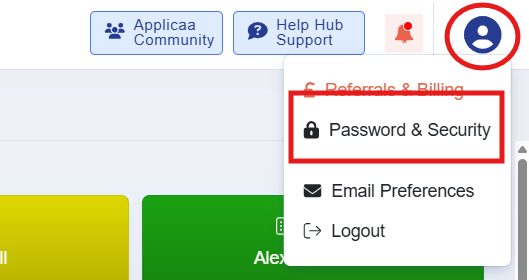
Click the circle profile icon in the top-right corner.
-
Select Password & Security.
Step 3: Connect the Authenticator App to Your Account
Section titled “Step 3: Connect the Authenticator App to Your Account”-
In the Password & Security section, a QR code will be displayed.
-
On your phone, open the authenticator app and add a new account.
-
Scan the QR code displayed on your screen.
-
Enter the 6-digit code generated by your app to complete setup.
Logging in with 2FA enabled
Section titled “Logging in with 2FA enabled”Next time you log in, instead of receiving a code by email, you will:
-
Open your authenticator app.
-
Enter the 6-digit code shown for your account.
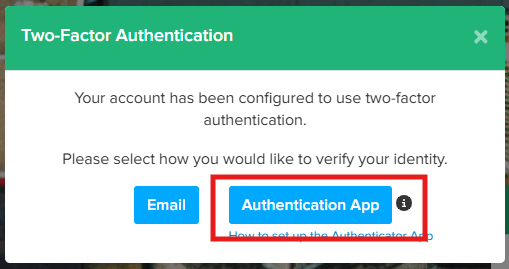
Logging in using an authenticator app provides a faster and more secure way to access your account.
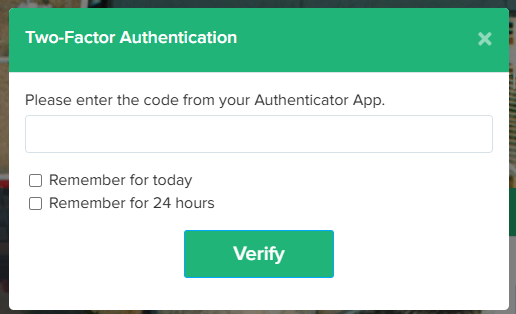
When entering the code from your Authenticator App, you’ll see two optional checkboxes:
-
Remember for today
-
If ticked, you won’t be asked to re-enter a 2FA code again until the end of the current day (midnight).
-
Useful if you’re logging in multiple times during the same day on the same device.
-
-
Remember for 24 hours
-
If ticked, your 2FA login will be remembered for a full 24 hours from the time you log in.
-
During this period, you won’t need to re-enter a 2FA code when signing in again on the same device/browser.
-
⚠️ Important:
-
These options only apply to the specific device and browser you are using at the time.
-
If you log in from a different device, browser, or clear your cookies/cache, you will be asked for a new code.
-
For maximum security, avoid selecting these options on shared or public computers.
Was this article helpful?
Thanks for your feedback.