
First Media Integration Guide
This guide will show you how to integrate applications from First Media group and its various local names such as Kent Choices, Sheffield Progress, eProspectus etc
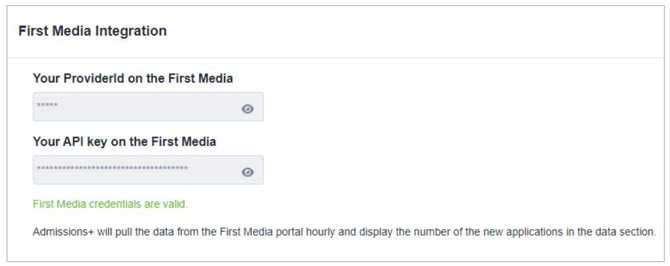
Setting up - integration
1. Go to Settings > School Settings > Integration
2. Enter details in space shown below
3. Add our IP address to your whitelist (172.31.26.171 )
Setting up - Continued (this only needs to be done once)
1. Go to Data > First Media Applications
2. Ignore Application Status (covered later)
3. Select primary email address (normally personal email address)
4. Map Student fields from First Media to Admissions+
a. Many fields are fixed in their mapping and cannot be changed eg Forename, Surname
b. Other fields can be mapped as required. Only fields that are used need to be mapped
c. Contact and Reference fields are all automatically mapped and cannot be changed.
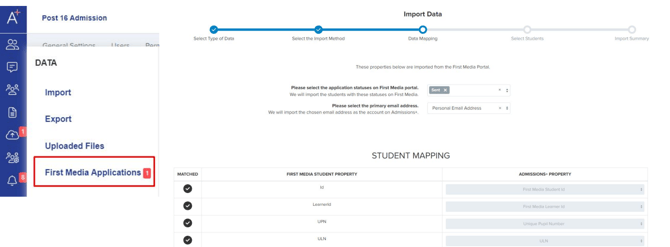
Note: you can view the default list of properties for mapping at the bottom of this article.
Importing student data
Note that the menu shows how many applications are available to import (ones that have ‘Sent’ status). This is updated hourly.
1. Navigate to Data > First Media Applications
2. Select the application statuses to import (normally Sent)
3. The mapping can be changed but normally this can be left from the previous use
4. Scroll to the bottom and click Next
5. The students that are available are listed
6. You can select all or filter for ones that you want to import - options are shown below
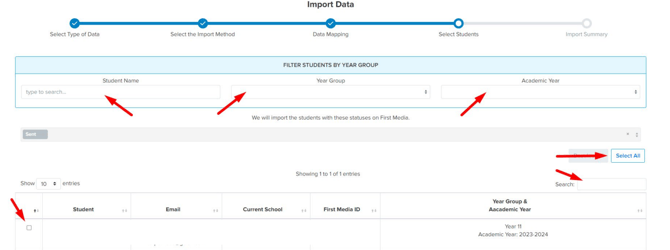
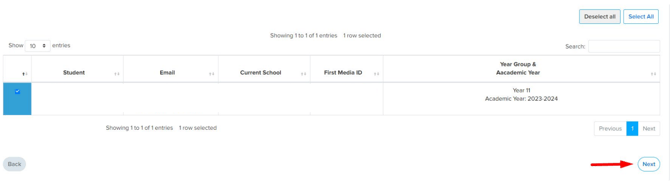
7. Once the students are selected scroll to the bottom of the list and click Next
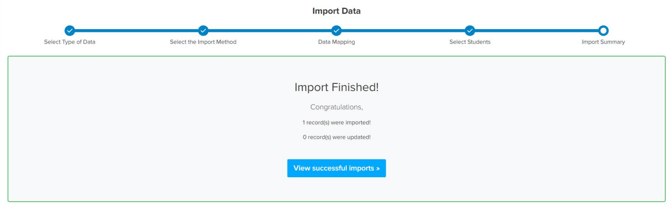
8. Please note that this will start the import process
Imported student data summary
1. Once the selected students are imported you will have the option to download a summary
2. The list of students can be exported
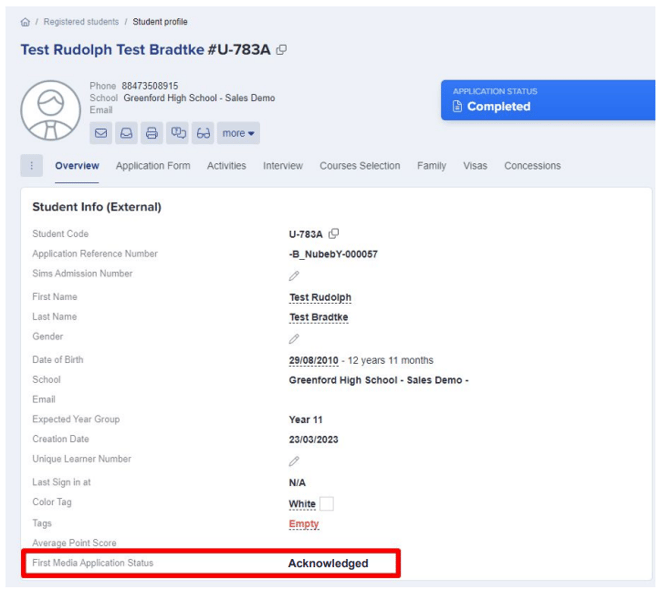
3. The status of the student on First Media will be updated to Acknowledged
Access the profile of a student to view their First Media Application Status
Default mapping for FirstMedia properties
| First Media | Admissions+ Property |
|---|---|
| Id | first_media_student_id |
| LearnerId | first_media_learner_id |
| UPN | unique_pupil_number |
| ULN | unique_learner_number |
| Status | first_media_status |
| Forename | first_name |
| Surname | last_name |
| PreferredFirstName | preferred_forename |
| PreferredLastName | preferred_surname |
| DateOfBirth | birthday |
| YearGroup | applied_year_group |
| CurrentSchool | current_school |
| LegalGender | gender |
| HomePhoneNumber | phone_home |
| PersonalPhoneNumber | phone_mobile |
| SchoolEmailAddress | |
| AddressLine1 | address1 |
| AddressLine2 | address2 |
| Town | post_town |
| County | county |
| Nationality | nationality |
| Postcode | postcode |
| Country | country |
| UKThreeYears | resident_uk_last_3yrs |
| UKEntryDate | date_of_arrival |
| EnglishFirstLanguage | first_language |
| FirstLanguageIfDifferent | first_language |
| LLDDHealthProblems | have_disability |
| LLDDHealthProblemsMore | disability |
| Ethnicity | ethnicity |
| ReligionBelief | religion |
| AcademicYear | expected_year_of_entry |
Other properties that can be selected can be manually mapped during the import process.
Was this article helpful?
Thanks for your feedback.