
iSAMS Integration (for state schools)
Guides and resources for connecting to iSAMS
iSAMS integration guide for state schools
iSAMS API Setup
Before you start exporting data to your iSAMs MIS from Admissions+, you need to do the following:
1. A school admin will need to contact iSAMs Partner Support at support@isams.com to request an Applicaa REST API Key. Once your request has been processed, they will email you with your API username (Client ID) and API password (Client Secret).
2. Add your iSAMS details to your Admissions+ system:
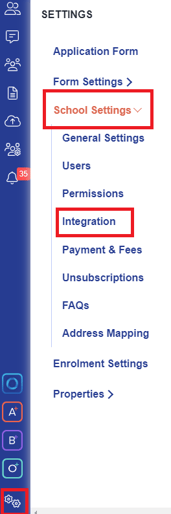
- Log in to Admissions+ and click Settings → School Settings → Integration.
-
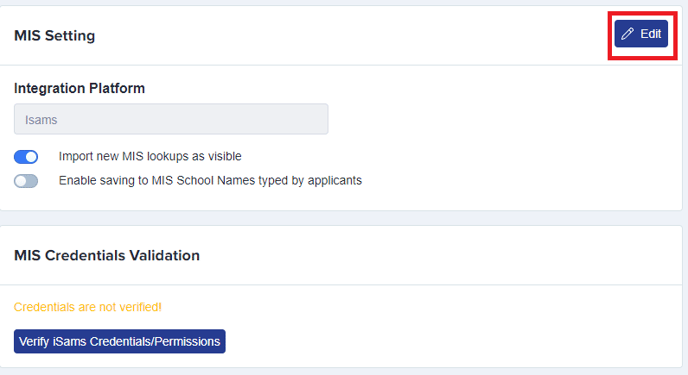
Click on Edit.
-
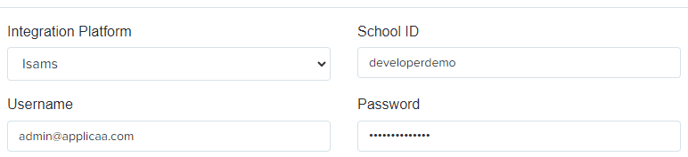
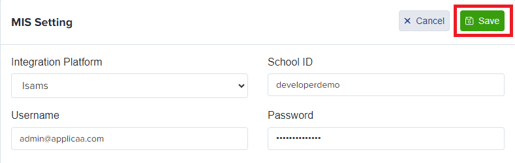
Select iSAMS as the Integration platform, then enter the following:
-
- Username: Your Client ID
- Password: Your Client Secret
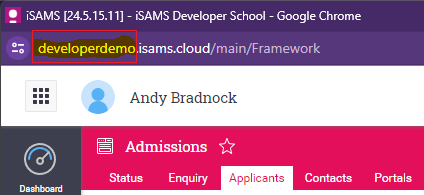
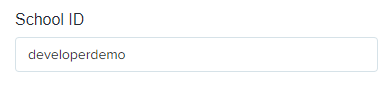
- School ID: Your school name in your iSAMS URL
-png.png?width=400&height=309&name=Screenshot%20(67)-png.png)
Note: Highlighted in the example below will be the school name
- Click on Save
Before you verify your iSAMS credentials in A+, please ensure your Applicaa REST API Key has the following Module Names set with WRITE permissions in your MIS:
- Teaching Manager (iSAMS_TEACHING)
- School Manager (iSAMS_SCHOOLMANAGEMENT)
- Admissions (iSAMS_ADMISSIONSMANAGER)
- Student Manager (iSAMS_STUDENTMANAGEMENT)
- Other Schools (iSAMS_OTHERSCHOOLS)
Changing REST API Client Permissions (access to iSAMS Identity needed)
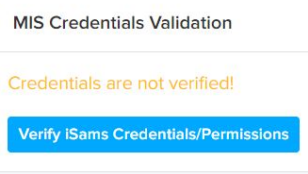
3. Select Verify iSams Credentials/Permissions to ensure your MIS credentials are valid.
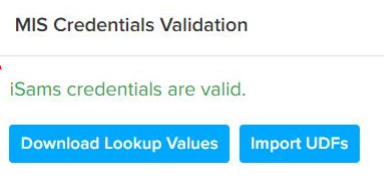
Once the validation process is complete, you should see this
message.
Was this article helpful?
Thanks for your feedback.