
Multi-Enrolment Prevention
The Multi-Enrolment Prevention feature helps schools manage student enrolments across the Applicaa network by providing visibility when students are enrolled at multiple institutions and preventing class overfilling through intelligent space management.
How It Works
Section titled “How It Works”Detection of Multiple Enrolments
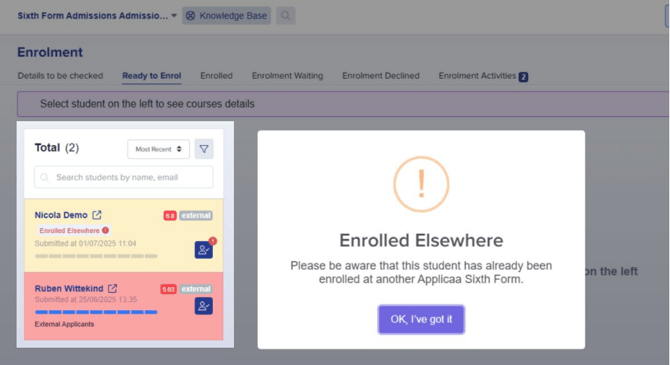
When you attempt to enrol a student who is already enrolled at another Applicaa institution, you’ll see:
- A red “Enrolled elsewhere” label below the student’s submitted details in the enrolment pipeline area.
- A tooltip explaining: “Based on our data, it appears that this student has already been enrolled at another Applicaa Sixth Form or College.”
- A pop-up notification when opening the student’s profile: “Please be aware that this student has been enrolled at another Applicaa Sixth Form or College.”
Sending Enrolment Requests
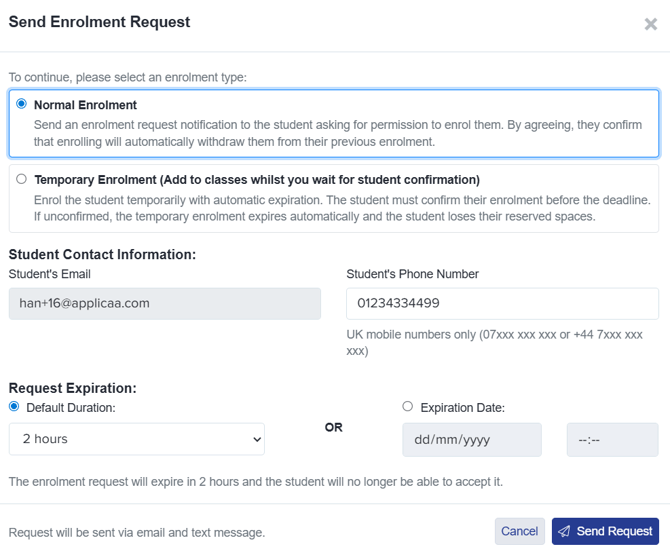
Section titled “Sending Enrolment Requests”When you attempt to enrol a student who is already enrolled elsewhere, a “Send Enrolment Request” dialogue box appears with two enrolment options:
Option 1: Normal Enrolment Request
- Sends an enrolment request notification to the student asking for permission to enrol them
- By agreeing, the student confirms that enrolling will automatically withdraw them from their previous enrolment
- This is the safest option to prevent multiple enrolments
Option 2: Temporary Enrolment (reserve classes whilst you await confirmation from the student)
-
Enrols the student temporarily with automatic expiration
-
The student must confirm their enrolment before the deadline
-
If unconfirmed, the temporary enrolment expires automatically and the student loses their reserved spaces (your class numbers are updated automatically, you receive a system notification and this is logged in the enrolment activities area)
-
Useful when you want to hold spaces while awaiting student confirmation
If you require all students to confirm that they want to be enrolled, you can set your system to force staff to send an enrolment offer to every student, regardless of whether they are enrolled elsewhere or not, by choosing Always. You’ll find these settings in step 4 of your Enrolment Navigator.

You can also specify whether spaces are reserved when sending the request or remain unreserved.
Setting Request Details
Section titled “Setting Request Details”You’ll need to provide:
- Student’s Email (pre-filled if available)
- Student’s Phone Number (UK mobile numbers only for SMS, this is used to also send the request via SMS for better communication)
Request Expiration
Section titled “Request Expiration”Choose how long the student has to respond:
- Default Duration: Select from dropdown (e.g., 2 hours, 24 hours, etc.)
- Expiration Date: Set a specific date and time
Example: “The enrolment request will expire in 2 hours and the student will no longer be able to accept it.”
Sending the Request
Section titled “Sending the Request”- The request is sent via email and SMS
- Click “Send Request” to proceed
- Click “Cancel” to abort the enrolment
Class Capacity Protection
Section titled “Class Capacity Protection”For students that have been offered a reserved enrolment offer (where spaces in classes were saved for them), the system includes intelligent safeguards to prevent class overfilling:
Real-time Availability Checking
Section titled “Real-time Availability Checking”When a student accepts a temporary enrolment offer, the system:
- Re-checks availability for all their chosen subjects
- Searches for any valid class combination (not just the originally-offered combination)
- Auto-allocates to the best available combination that balances class sizes
If Spaces Aren’t Available
Section titled “If Spaces Aren’t Available”Students see a clear message:
Cannot accept placeThere are no places available at this time for the offered subjects. This can happen if places were filled after your offer was made. Please contact the school if you have questions.
Students can still reject the enrolment offer at any time.
Class Allocation Settings
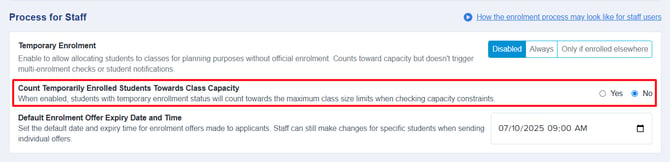
Section titled “Class Allocation Settings”In Step 4 of the Enrolment Navigator (Grade Requirements section), you can configure:
“Count Temporarily Enrolled Students Towards Class Capacity”
- Default (NO): Reserved places are not counted when checking class capacity during auto-allocation
- Enabled (YES): Reserved places are included in capacity calculations, preventing over-booking
Example: If max capacity is 18 and there are 15 enrolled + 7 reserved, the system will consider the class full (22 total) when this setting is enabled.
What Happens When Students Unenroll
Section titled “What Happens When Students Unenroll”Notifications Sent
When a student unenrolls from a school to accept your offer:
- Your school receives an email (if opted into) and a system notification: “[Student Name] has successfully unenrolled from one of their selected schools and is now eligible to be enrolled at your institution.”
- The other school receives an email: “[Student Name] has chosen to unenroll from your institution.”
How Students Manage Their Enrolments
Section titled “How Students Manage Their Enrolments”Students can log into their ApplicaaOne profile and access “Manage your enrolments” where they can:
- View all schools they’re enrolled at
- See their enrolment status at each school
- Update ranking of their preferred schools
- Respond to enrolment requests
- Accept new enrolment requests from schools (requires typing “YES” to confirm)
- This automatically unenrolls them from existing enrolments
- Accept new enrolment requests from schools (requires typing “YES” to confirm)
Key Benefits
Section titled “Key Benefits”✓ Prevents class overfilling through real-time availability checking
✓ Automatic class balancing when students accept offers
✓ Clear visibility of students enrolled elsewhere
✓ Flexible settings to match your school’s enrolment process
✓ Automated notifications keep all parties informed
✓ Student empowerment to manage their own enrolments
Here is a video demonstrating the multi-enrolment prevention process.
Was this article helpful?
Thanks for your feedback.